Instructions for working on the platform
Registration on the Platform
1. Filling in Registration Data
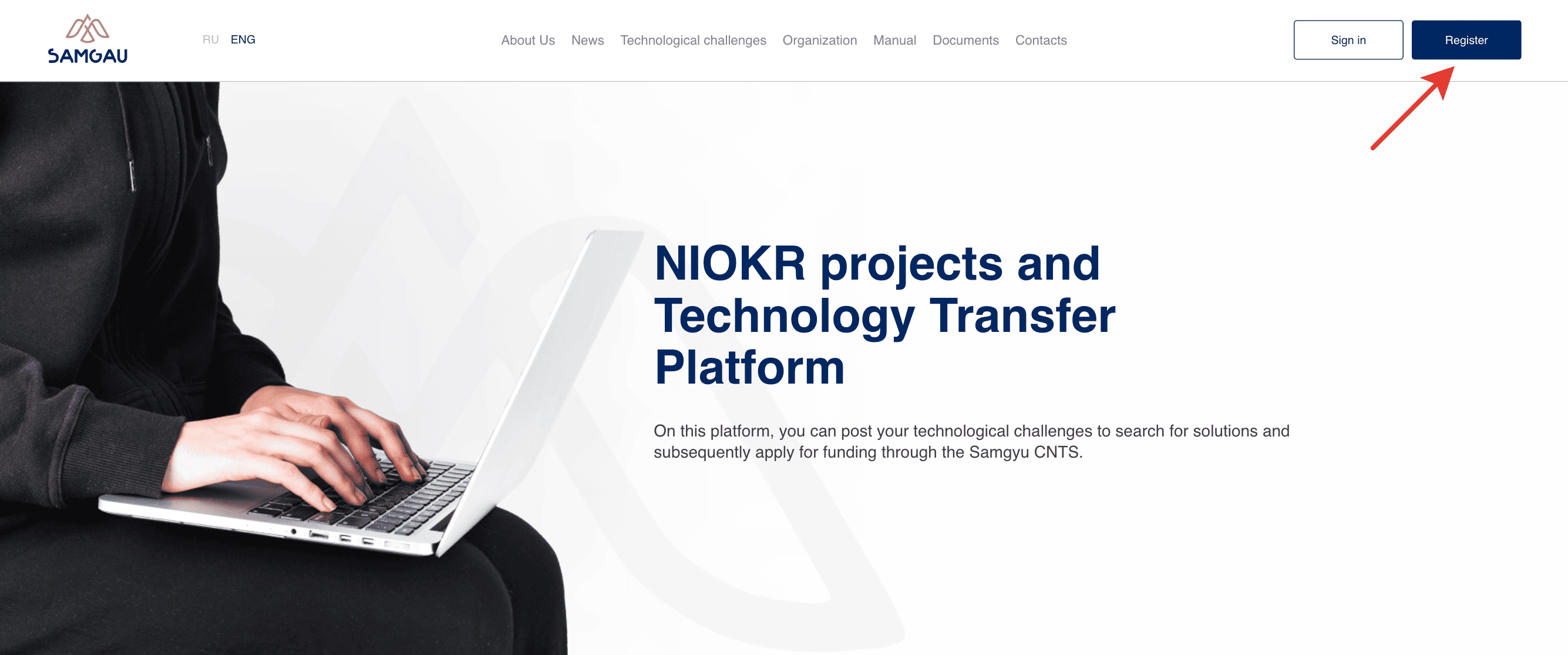
In the pop-up window, you need to complete all fields marked with a red asterisk and click the “Register” button. You will be able to edit your user data and fill in any missing fields later in your personal account.
2. Profile Completion and Organization Addition
Depending on the selected role, the system will prompt you to complete the corresponding profile (Customer or Contractor). Currently, the platform is designed exclusively for B2B interaction (only between organizations). Therefore, key and mandatory information in the profile includes your organization (place of work) and your position within it.
3. General Information
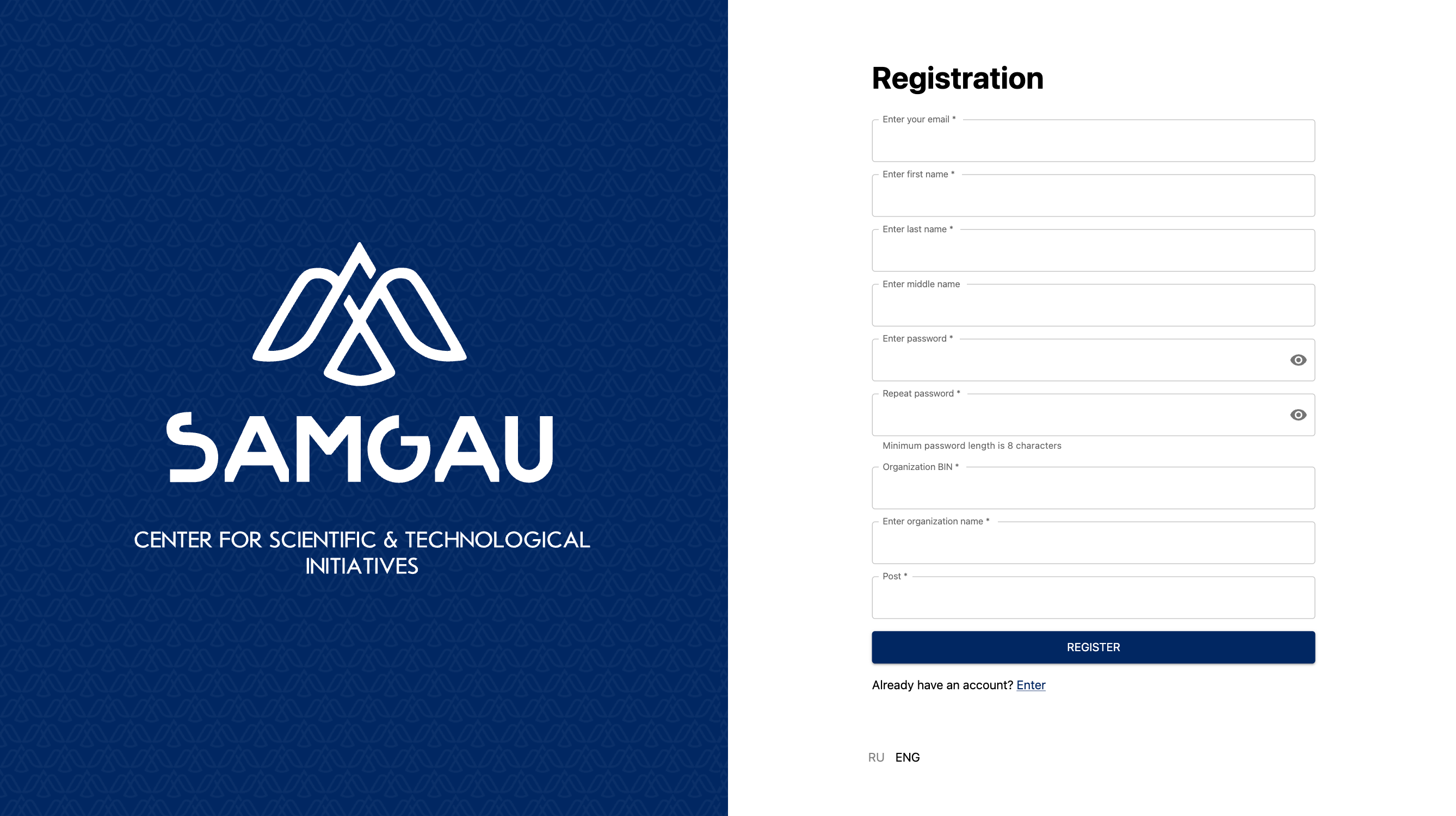
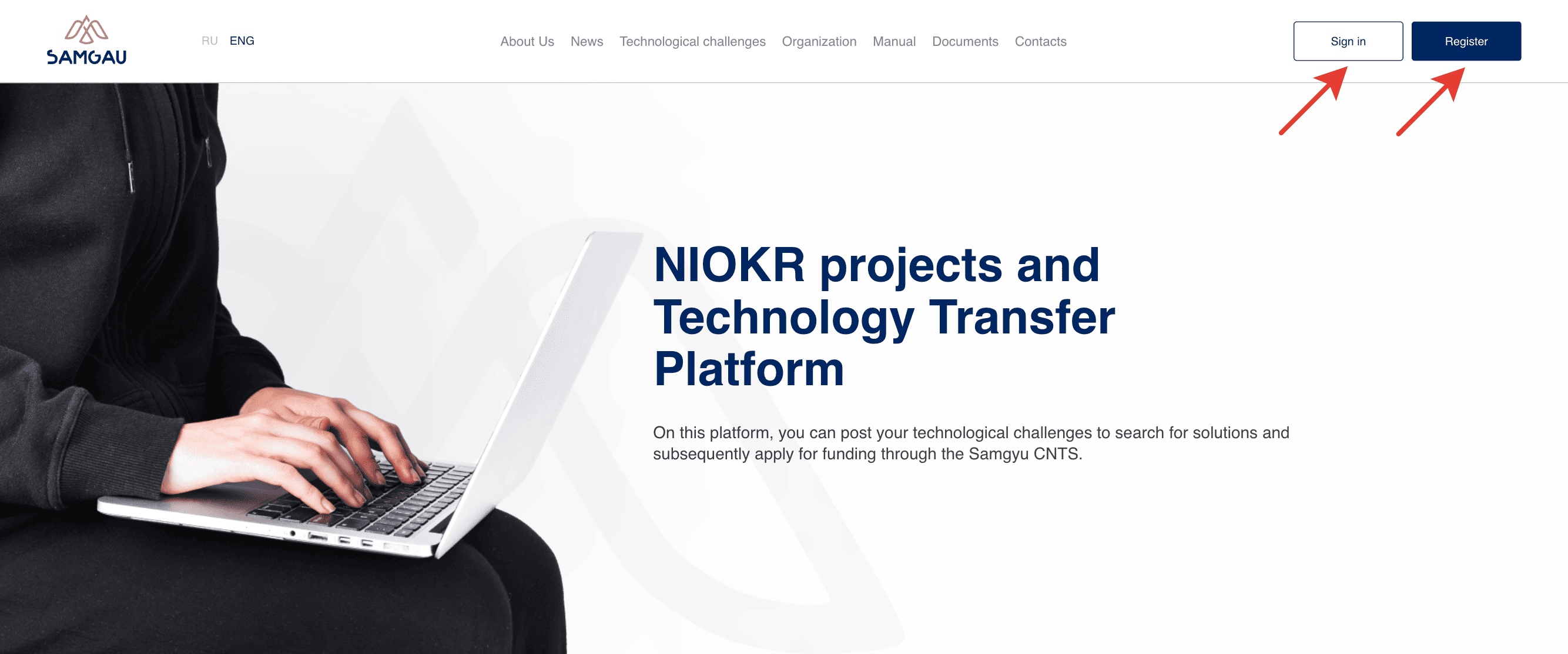
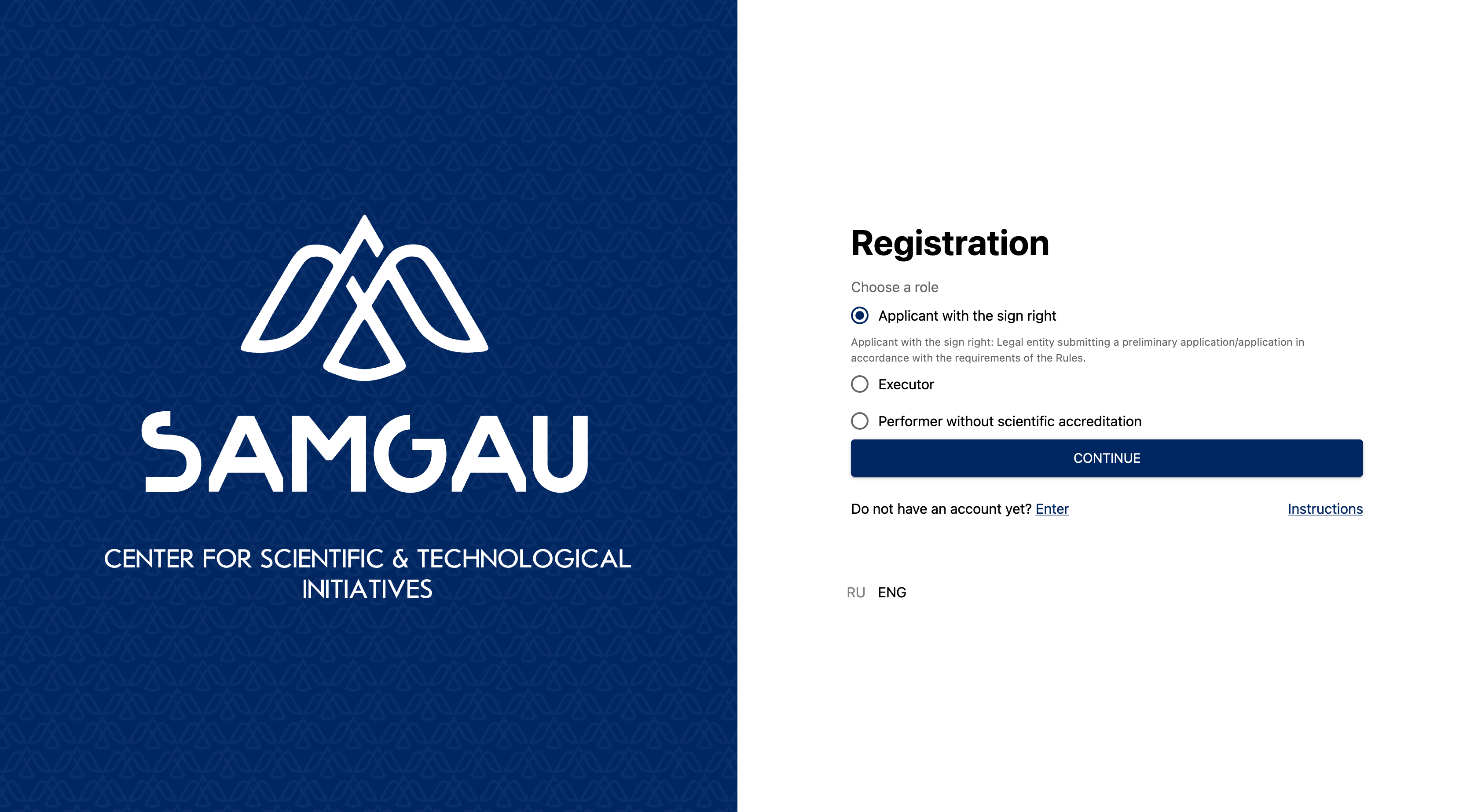
To register, click the “Log In” button in the upper right corner of the screen. The “Register” button is also available on the homepage.
4. Role Selection During Registration
In the next step, a window will appear where the system will prompt you to select a role on the platform. At this stage of the platform prototype, the active roles are “Customer” and “Contractor”. The “Customer” role allows you to create and publish requests for proposals. The “Contractor” role allows you to create proposals and submit them in response to Customers’ requests. After selecting a role, click the “Continue” button.
Solution Proposal for a Technological Task
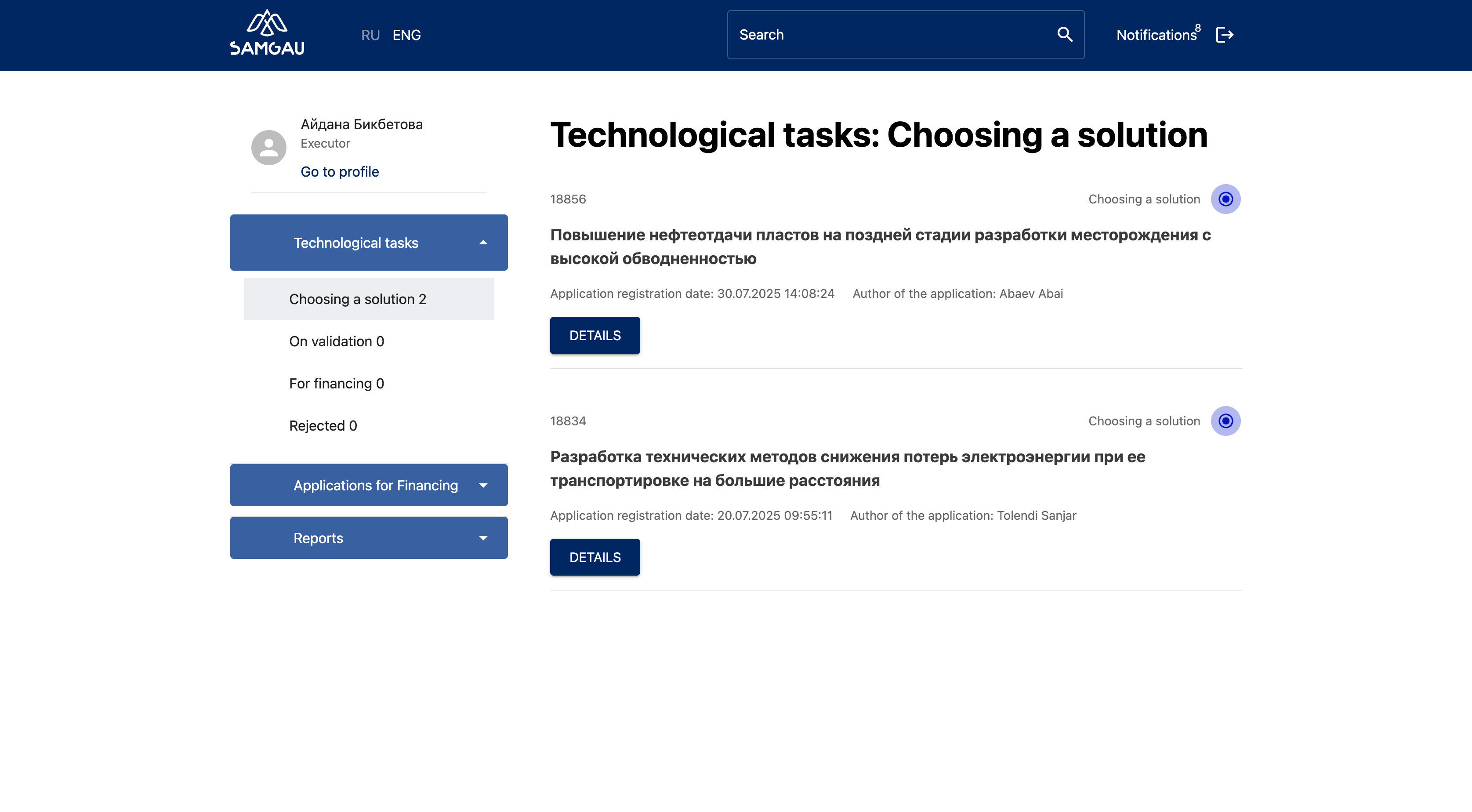
1. Access to the Technological Task:
Go to the application card assigned to you for work.
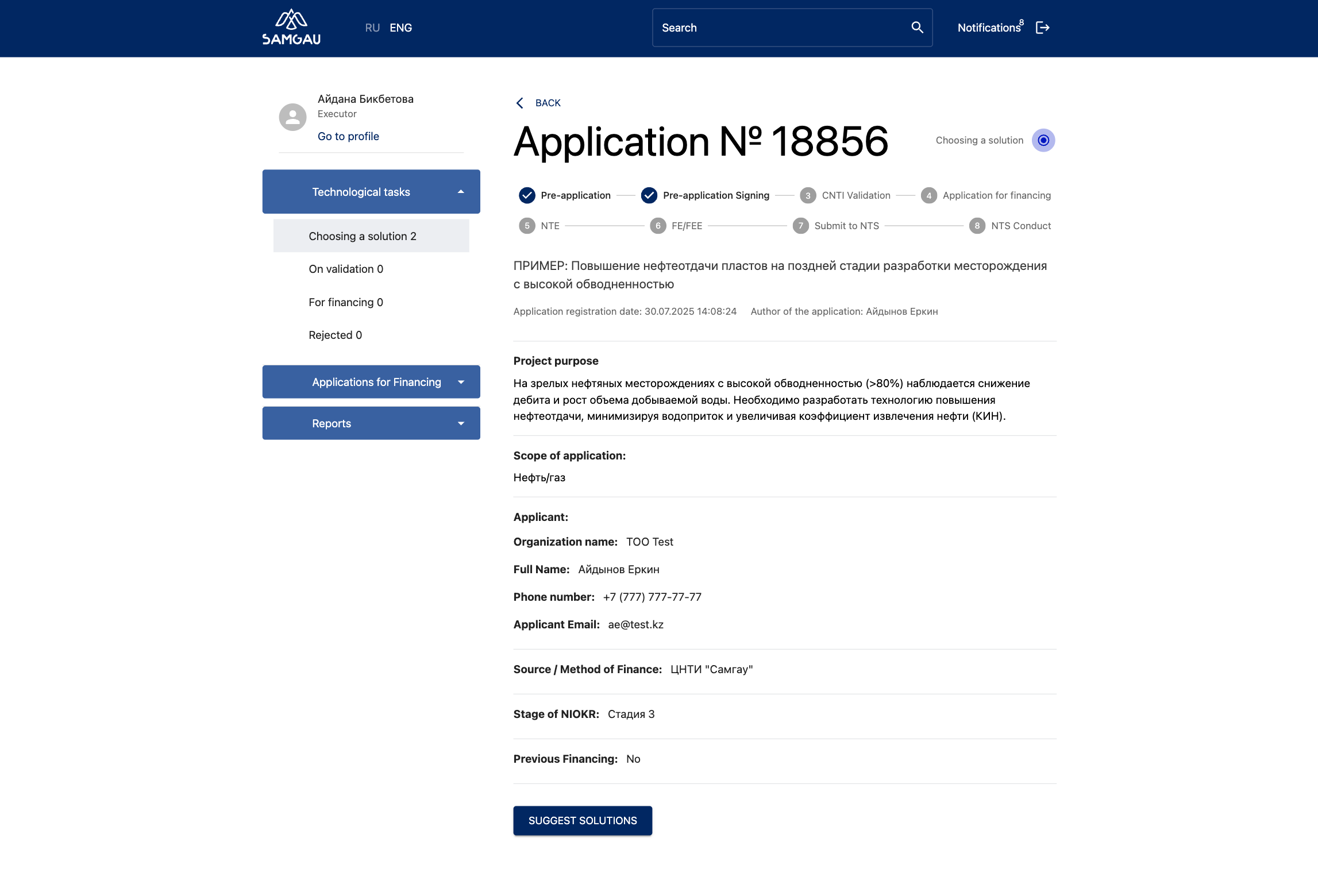
2. Submitting a Solution:
Click the “Propose Solution” button, fill in the required fields with a description and technical details, then save.
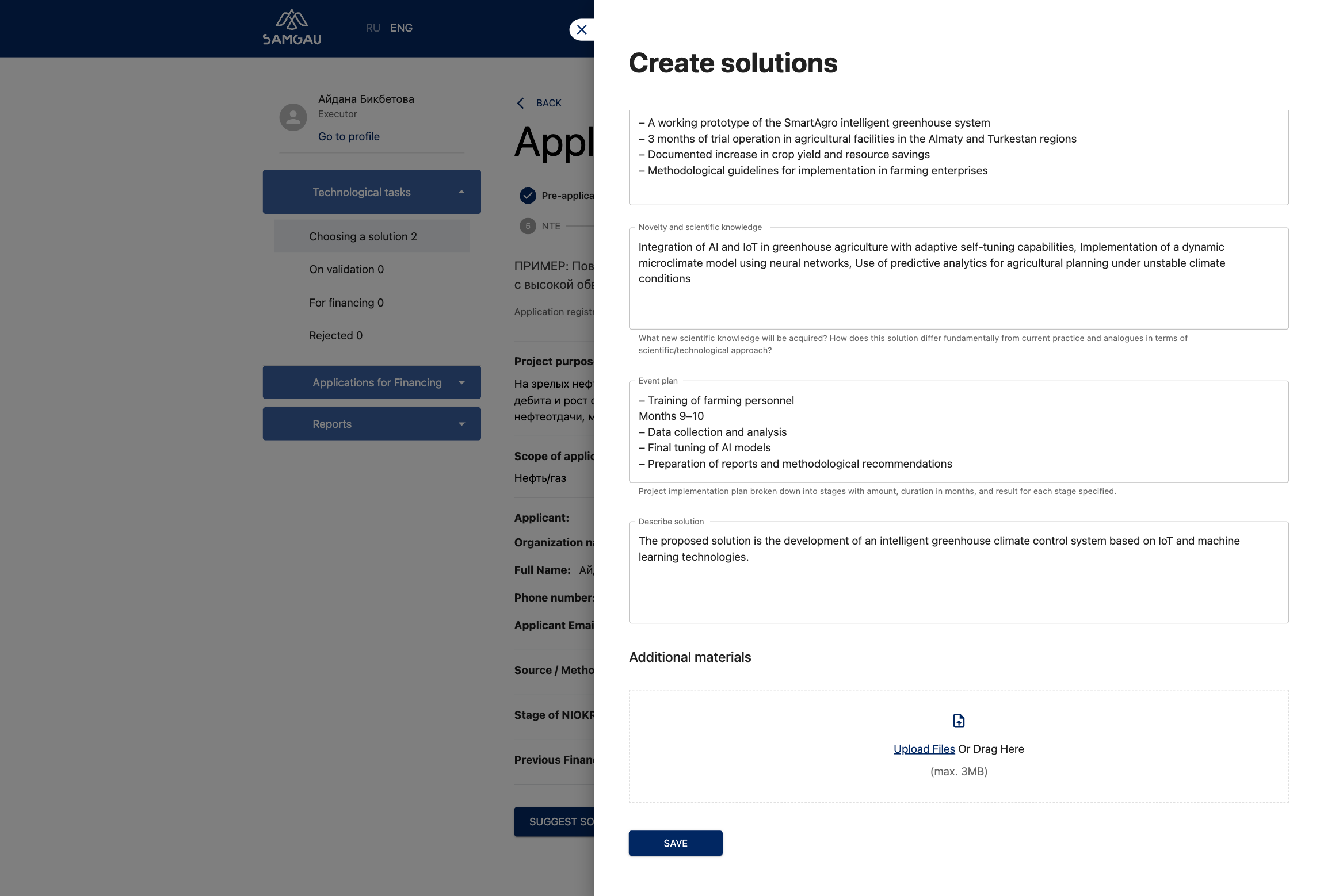
3. Attaching Documents:
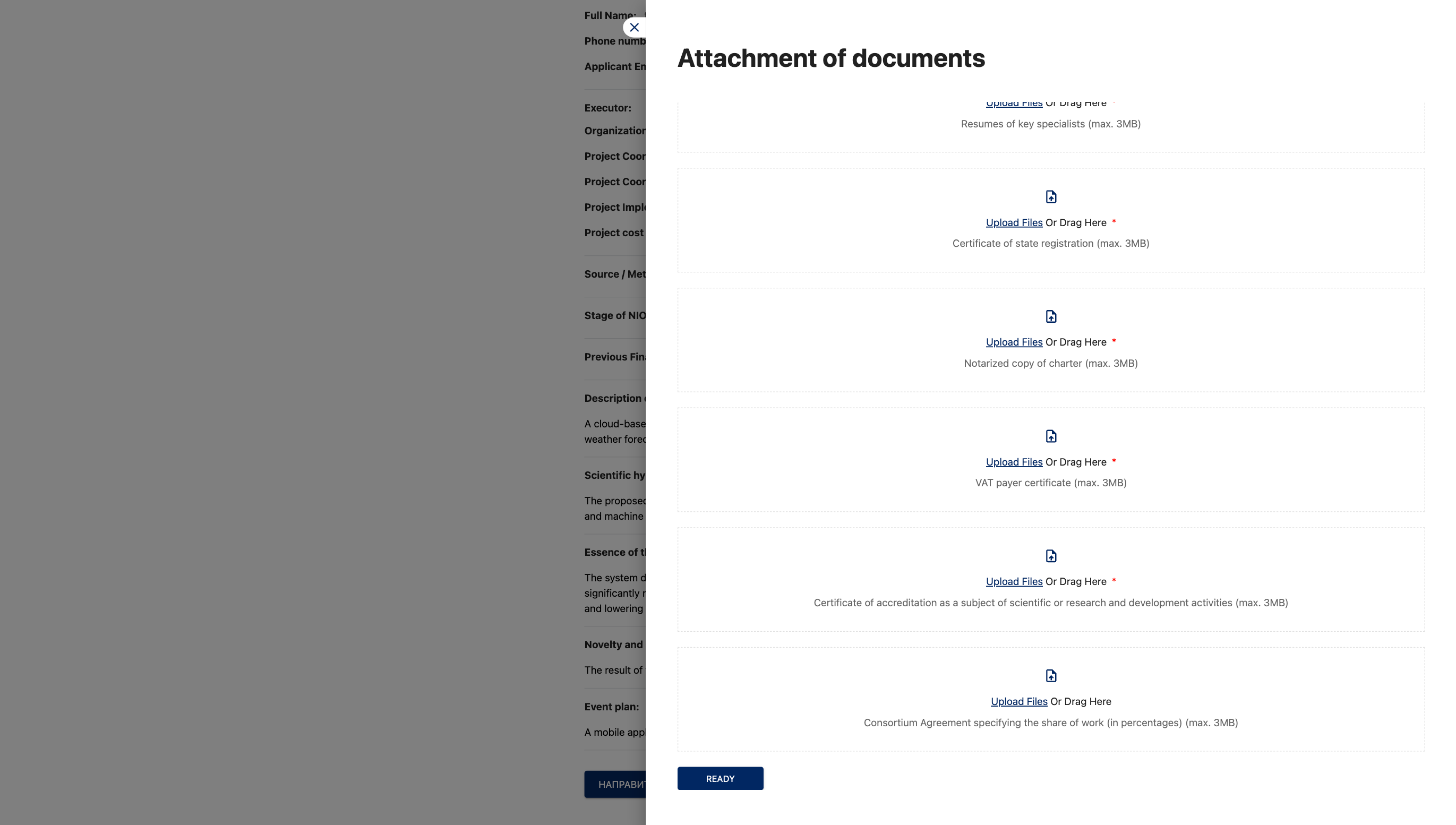
Upload technical documents, calculations, or additional materials via the modal window by clicking “Attach Document” → “Upload”.
4. Funding
After the solution is approved and the application is moved to the funding stage, attach the documents required to start the work (e.g., an estimate or a project timeline).
Notifications
1. Working with Notifications
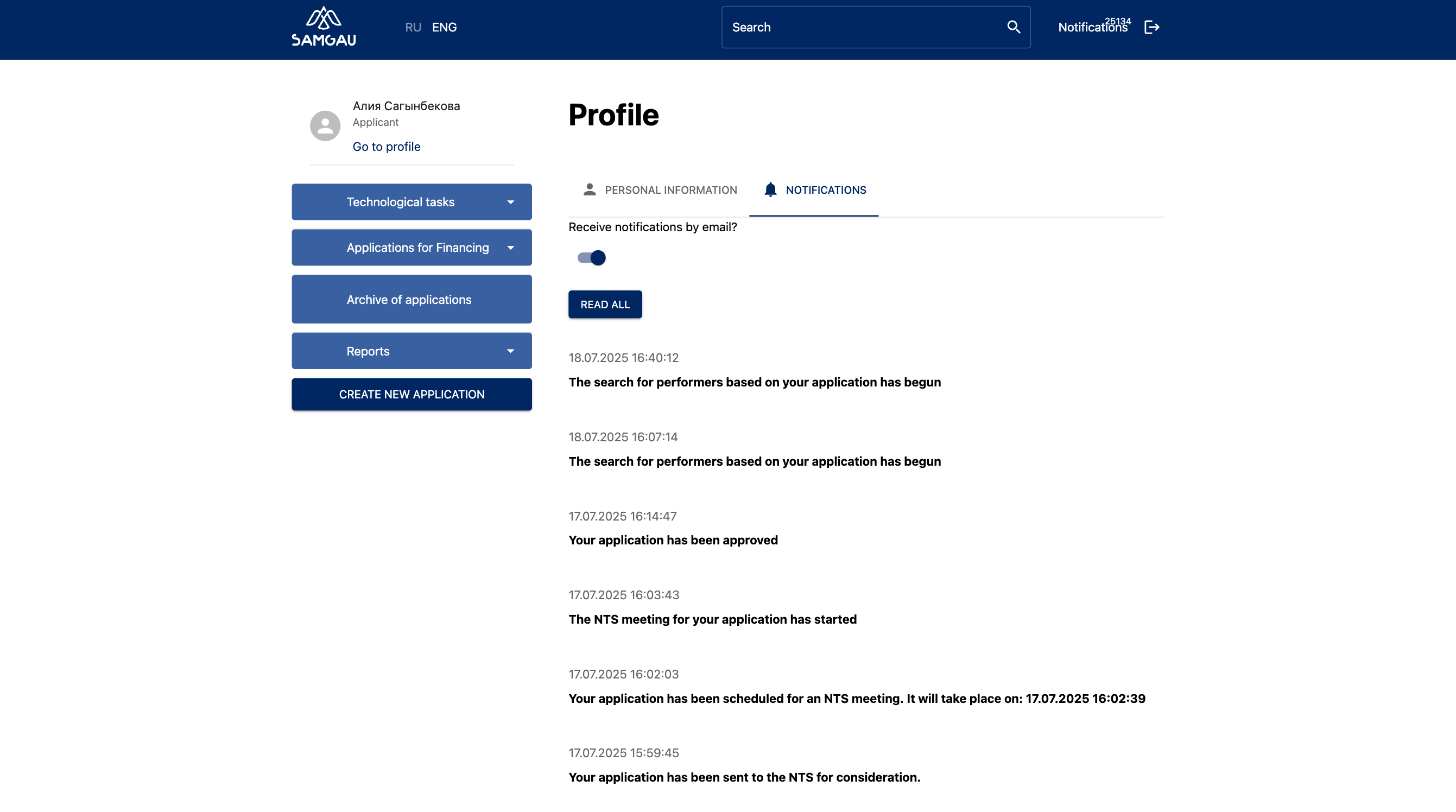
Users receive system notifications both on the website and at the email address provided during registration. Website Notifications In the user’s personal account, under the “Notifications” section, all current messages are displayed. Unread notifications are visually highlighted for user convenience. Each notification is clickable: clicking it redirects the user to the detailed page of the corresponding technological task, where they can view the full description, attached materials, and actions related to the application. Email Notifications Users also receive an email notification containing brief information about the event and a hyperlink that leads directly to the detailed page of the application or solution. This allows users to quickly access the necessary information without having to search for it manually on the website.